


In the Pages section, you are able to add, edit, and delete pages for your website, as well as create custom pages and manage the site navigation.
The first section, "My Pages" lists all available pages for your site alphabetically after the Home Page.
To add or update elements for a provided page (Home, About Us, and Contact) or custom page, click on the three-dot icon and select "Edit".

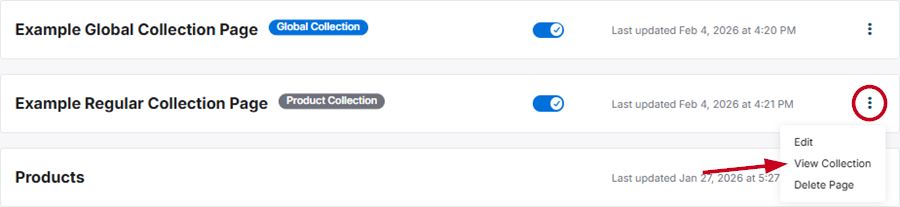
To modify the products within a collection page, click on the three-dot icon and select "View Collection".
I want to:
Add Custom Page
Click on the "+ Add Custom Page" button.

A window will open where you can enter the Page Name and Slug. As you type the page name, the slug will be automatically generated based on the page name text. The slug is the URL friendly version of the page name and appears in the address bar when visitors to your site are viewing that page. It is usually all lowercase and contains only letters, numbers and hyphens. You can choose to update the slug if you like or use the one provided. When you are ready, click on the Add Page button.

The page will now be listed in the My Pages area. Click on the three-dot icon and select "Edit" to add and/or update the elements on the page.
Add Product Collection Page
Click on the Add Product Collection Page button.

A window will open and prompt you to select a collection, enter a Page Name and Slug. The slug is the URL friendly version of the name. It is usually all lowercase and contains only letters, numbers and hyphens. Use the Collection dropdown to browse through your ESP+ collections. You can use the Search Collections box to begin typing the collection name to locate it more quickly.
There are two types of collections available:
- Global collections are provided by ASI and are available for use on your site. If you would like to customize a global collection, you can create a duplicate of the collection which will make it a regular collection which can be modified.
- Regular collections are collections that you or other users in your company have created.
When the collection is selected, the page name and slug will be automatically generated. You can choose to update these fields or use the provided information. When you are ready, click on the Add Page button.

In the My Pages section, all available pages for your site will be listed alphabetically after the "Home" page. To modify
a regular collection page, click on the three-dot icon and select "View Collection".
Note: When you have finished updating the collection, to return to the site admin area, click on the "Websites" option from the main toolbar, click on the website listing, and then click on the "Pages" tab.
For both global and regular collection pages, the three-dot menu will provide the "Edit" option which enables you to update the page and SEO information, as well as the option to delete the page.
Manage Navigation
The Header Navigation and Footer Navigation subsections enable you to update the structure for each menu. For more information, please review the Manage Site Navigation article.