


In the Content Library, generated assets can be used to customize elements. Elements can be added to ESP+ Website pages and ESP+ Stores as tiles, banners, and individual images.
To access the content library, click on the user icon in the top right of ESP+, then click on the "Content Library" button.
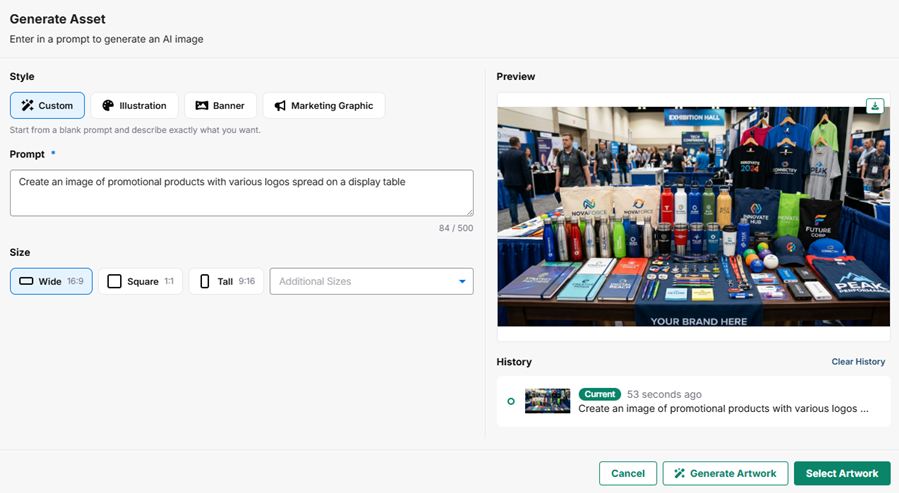
In the content library, you can generate assets by clicking on the "Generate Asset" button.
You have the option to generate:
- Custom: Create an image starting from a blank prompt and create exactly what you want.
- Illustration: Create a vibrant digital illustration
- Banner: Create a wide graphic that you can use for banners and headers on presentations, stores, websites, and more!
- Marketing Graphic: Create an eye-catching promotional graphic.
For any of the asset styles, type in the prompt to describe the image that you want, select the image size/shape, then click on the "Generate Artwork" button
If you are creating a banner or marketing graphic for a specific website, store, or presentation, you can select it and select what content you would like the generator to display from the destination onto the generated image.
You can enter additional prompts and content until you are satisfied with the image. Once you are done, you can download the image to your computer by clicking the down arrow in the top right of the image, or save it to your Content Library by clicking on the "Select Artwork" button, then entering a name, alt text, and any image tags you wish to use then click "Save Asset".