


ESP+ Stores allow an account balance or points to be utilized by customers during the checkout process by enabling the slider for “Account Balance or Points” in the Payment Management area of the Order Management section.
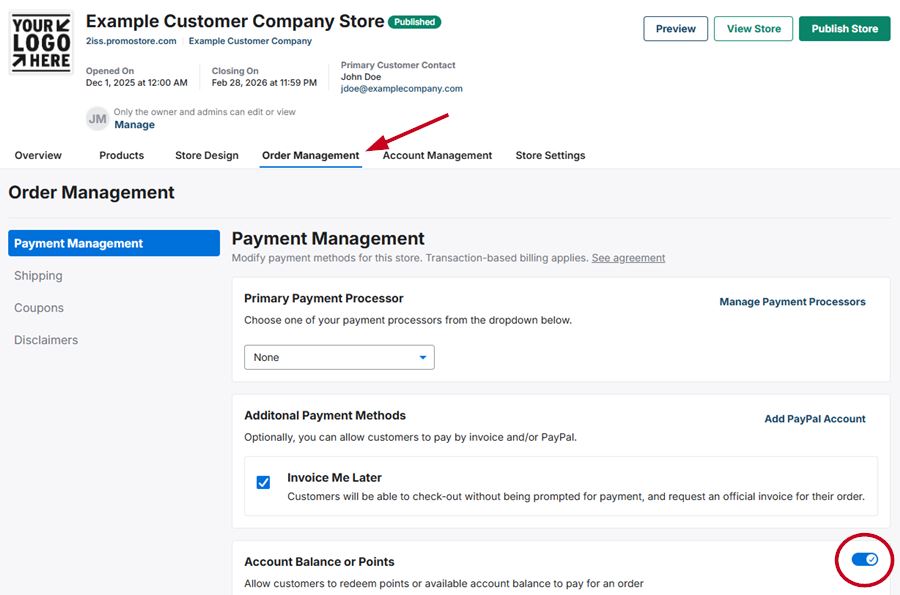
The available options are:
-
Account Balance: Reflects a set dollar amount and will display the customer’s balance amount during the checkout process.
Example of Redeeming an Account Balance During Check-out Points: Use an exchange rate to determine the monetary value and will allow the customer to redeem their available points during the checkout process.
Example of Redeeming Points During Check-out
To update the point exchange rate, select "Points", click on the "Edit” link, enter how many points is equivalent to one dollar, and click on the "Save" button. A notification will appear to confirm the changed rate.
It is important to keep in mind that if the Account Balance or Points is the only payment option enabled on the ESP+ Store, the customer must have sufficient funds to submit their order. It is strongly recommended that a primary payment processor or the option to “Invoice Me Later” is selected as well.
Update User Account Balance
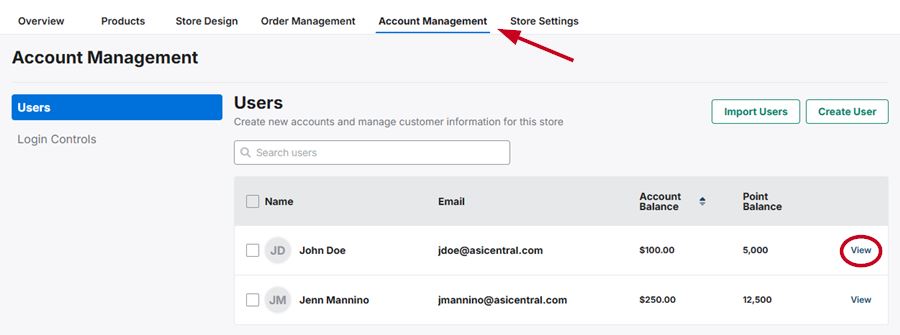
Whether the ESP+ Store has been enabled for an account balance or points, both options can be managed in the individual user's account in the “Account Management” section. In the "Users" area, each user account will be listed with the customer’s name and email. If the ESP+ Store is set to accept an account balance, only the account balance will be available. If the ESP+ Store is set to accept points, the account and point balances will be shown side by side. To update the balance information, click on the “View” link.
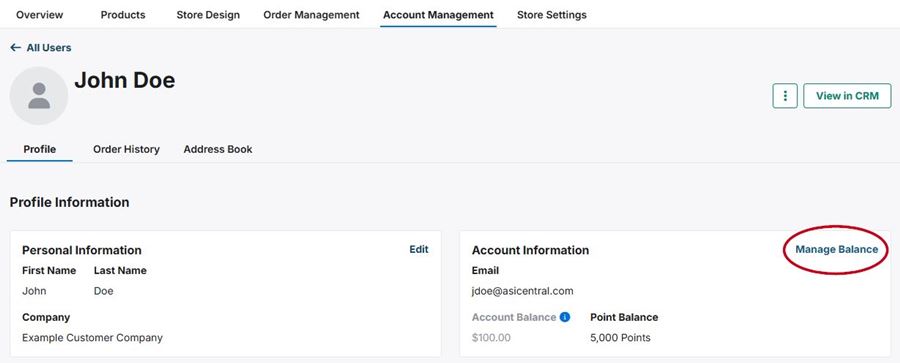
The “Account Information” area will display the account and or points balances depending on which option has been selected. Click on the “Manage Balance” link.
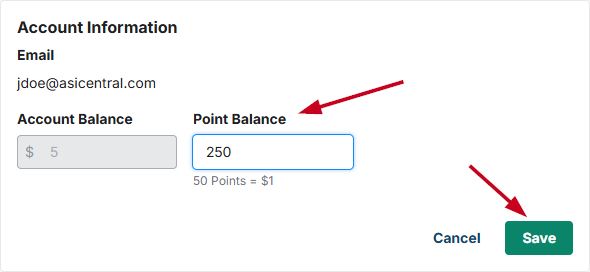
Update the amount in the appropriate box and then click on the "Save" button.
When ready, click on the “Publish Store” button to make all changes live for the ESP+ Store.
