In the Pages area you are able to add, delete, and edit individual pages on your website.
Add Pages
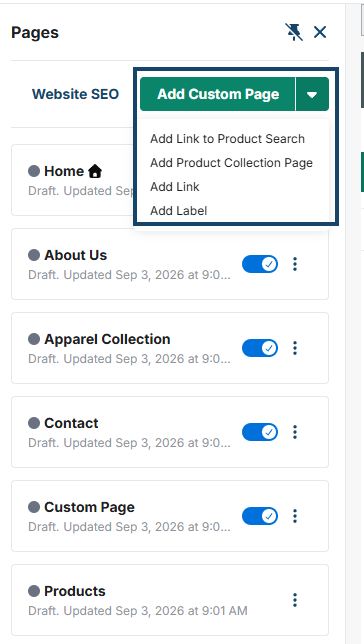
There are several different types of pages you can add to your website:
- Custom Page: A blank page that can be customized with elements.
- Link to a Product Search: A page that links to a product search of your choosing.
- Product Collection Page: A page with a curated selection of products.
- Link: Add a button to your navigation that links to any external website or page on your website.
- Label: Add a label to your navigation.
To add a custom page, click on the "Add Custom Page" button. To create any other page, click the down arrow and select the page type you want to create.
Edit Pages
To edit pages, click on the 3-dot icon on the page you wish to edit, then click "Edit Page". The preview of the page will open and you can begin editing the page.
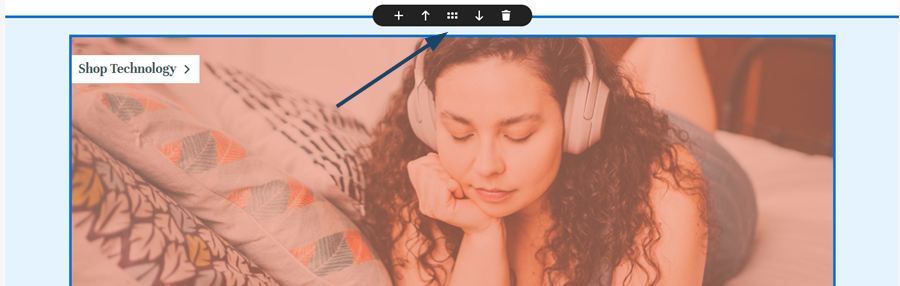
To edit an element on the page, click on the element in the site preview you want to edit. You can use the up/down arrows to move the element up and down on the page, or click the center icon to drag and drop the element where you want it on the page. To delete the element, click on the trash can icon. To add an element, click on the "+" icon and select the element type you wish to add.