


EESP+ notifications alert users to activities, customer actions, and updates. Notifications can be set to appear within ESP+ via the bell icon, email, or both.
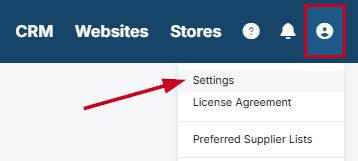
Notifications in ESP+ are able to be managed by clicking on the user icon and then clicking on the Settings link.
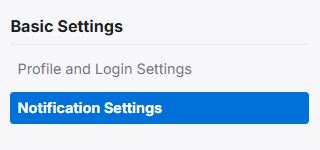
From the Basic Settings option on the left, click on Notification Settings.
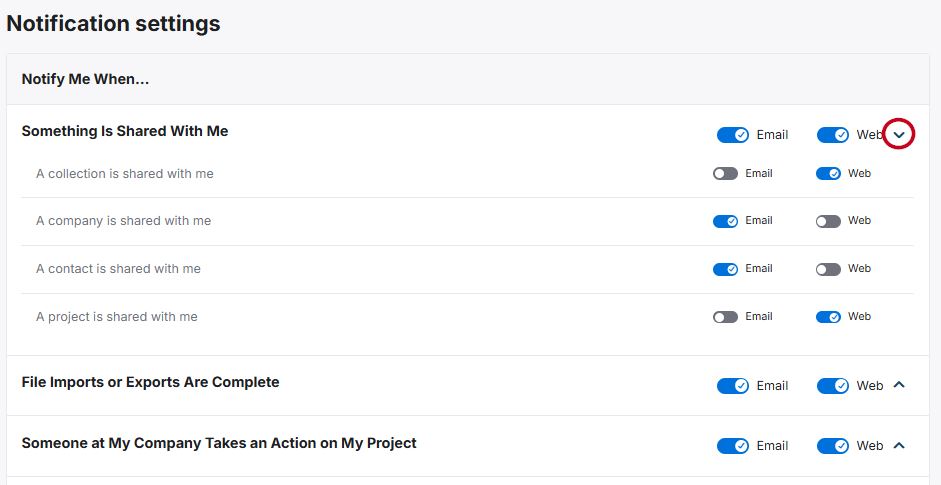
The Notification Settings will display broad topics for notification with sliders for Email and Web.
- Email will enable notifications to be sent to the email address in the Profile and Login Settings in ESP+
- Web will push notifications to the bell icon where they will be available throughout ESP+
The sliders available at this level will automatically set all subtopics within the section to the same option. For example, if the "Email" slider is disabled and "Web" is enabled for the broad topic, all options below will reflect those settings. To update the subtopics individually, click on the arrow expand the section and use the sliders for the individual subtopics to set your notification preferences.
Changes are saved automatically.