


The process of aggregating orders simplifies the store order process by compiling multiple orders from a store into individualized purchase orders by vendor. For example, if several customers order 1-2 of the same shirt, those orders can be aggregated into a single purchase order to send to the vendor.
When a Store is created, a project is simultaneously created in ESP+.
To aggregate orders, access the Order Management tab in the Store project.
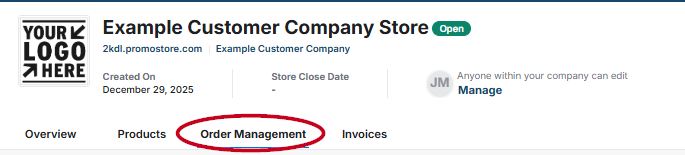
Next, click on the Available to Aggregate button to view the orders that are ready to be aggregated.

Check the box to select all of the orders, or check the box for each order you wish to aggregate.
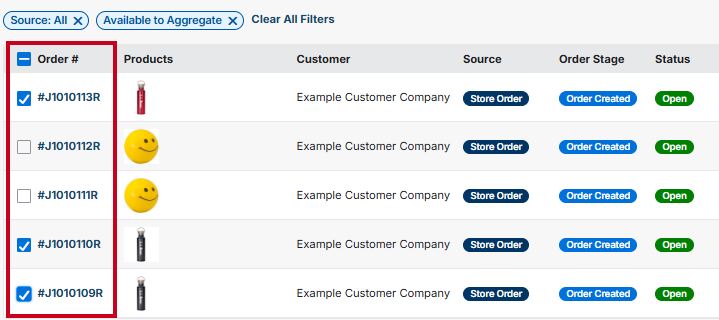
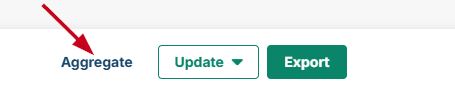
At the bottom of the screen, an "Aggregate" button will appear. Click on the button to aggregate the orders.
After aggregating the orders, you can access the purchase orders by clicking on the newly created order number and clicking on the Purchase Orders tab.