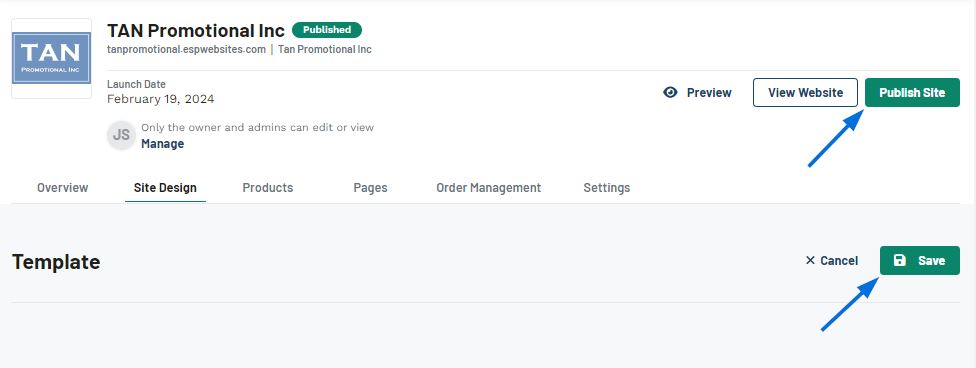
In the Site Design section, you are able to customize the design elements of the website.
I want to update:
- Color Palette.
- Customizable Header and Footer.
- CSS
- Template
- Primary
- Secondary
- Tertiary
- Highlight
Color Palette
The color palette contains four colors: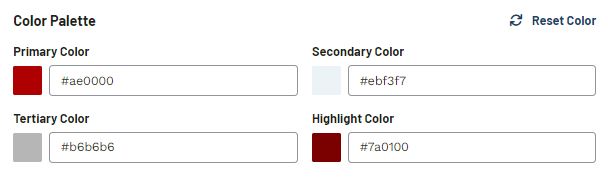
Each of these colors can be customized by clicking on the color swatch or into the text box. A color selector will appear which enables you to visually select a new color. You can also enter a hex code, as well as use the arrows to switch to HSL (Hue, Saturation, Lightness) or RGB (Red, Green, Blue) values.
To view how the colors will be displayed on the live site, click on the Live Preview button to open the website in a new tab. Use the Reset Color link to return all colors to their original hues.
A preview of the site will be displayed to the right of the color palette and will update immediately with the newly selected color(s).
Customizable Header and Footer
To enable the customizable header and footer, toggle on the desired option. Then, click the down arrow to dispplay the navigations you wish the customize. Expand each one and select the elements you wish to hide or display in the header and/or footer of the website. You can also choose a layout for the header and/or footer in this area.
Customize CSS
The CSS section enables custom CSS (cascading style sheets) for your ESP+ website. Click on the down arrow, enter the custom code, and then click on Save when you are finished.
Change Template
In the Change Template section, hover on a template to preview it in a new tab or select it for your website. You can also click on the pages name to preview how the template looks for that page on your site. Clicking on the Edit Page button will open the page design options in the Pages section.
When you are finished updating the site design, click on the Save button and then click on Publish Site to make the changes live.