


A sample request is a sales document sent from the distributor to the supplier asking for a small quantity of a product prior to placing an order. The sample request is sent to the supplier, so it will contain net cost information and vendor details and should only be shared internally.
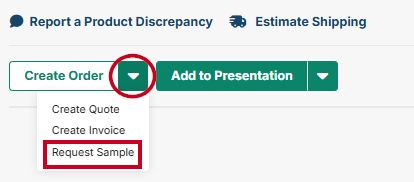
To create a sample request, navigate to the product for which you want to request a sample. In the product details page, click on the down arrow next to "Create Order" and click on "Request Sample"
If the project you would like to use for the sample request is listed, click on the listing to open it, or search for the project or customer. You can also create a new project, or skip for now if you do not want to add the sample request to a project.
Next, select the customer you want to create the sample request for. If the customer is not listed, you can search for the customer or click on "Create Customer" to create a new one.
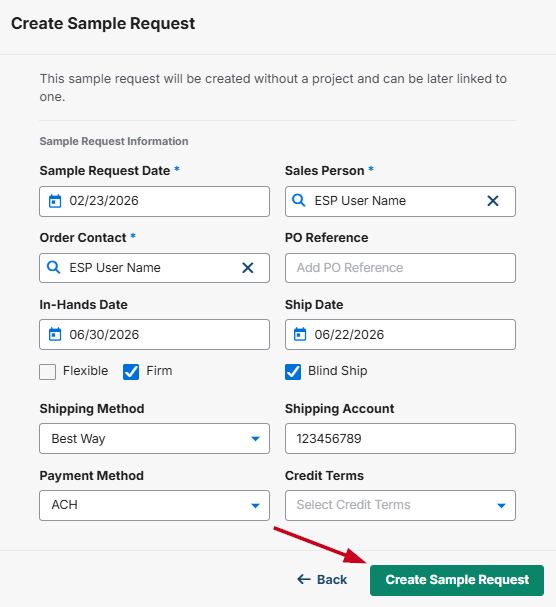
In the Create Sample Request window, enter the details for the sample request. Then, click on "Create Sample Request".
A success message will appear in the bottom right of the screen with a "Configure Products" button." The message will disappear, so if you need to access the sample request after the message disappears, you can access it in the Orders area in ESP+ where you can configure the product and send the purchase order.