


IMPORTANT: Before entering the pricing for an item, it is important to add all attributes (colors, sizes, shapes, materials, product options imprint methods, etc.) which may affect the base price or will incur an additional charge.
When entering pricing information for an item, there are two available sections:
- Base Price
The starting cost of the mug with its standard features. For example, a basic ceramic mug has one price for all standard features and begins at a minimum quantity of 12 with four additional price breaks at 24, 36, 48, and 60, all set to the "R" discount code. The net cost is the amount that the supplier will charge you, the distributor, for the product. - Upcharges
Additional costs incurred when the customer chooses to add options and/or customization such as imprinting, personalized text, or special features. For example, additional charges, such as a less than minimum, set-up charges, additional colors, special options, etc. will require an upcharge price grid.
Pricing Information Overview
Both base pricing and upcharge price grids in ESP contain four rows:
- Quantity
Quantity is the amount of units. The quantities will generally correspond with price breaks given by the supplier, meaning that there is a discount for ordering more. The lowest price break is considered the minimum quantity, which means the distributor will need to order at least that many units. In some cases, suppliers will sell in quantities that are lower than the minimum for an additional charge. - Catalog Price
Catalog Price is the suggested price for the base product provided by the supplier and is also referred to as the List Price. Distributors have full control over the List Price when creating ESP presentations or order documentation. - Net Cost
Net cost is the base price the distributor needs to pay the supplier for the product and will not be shown on any customer facing documentation in ESP. - Profit
Profit is the amount the distributor is projected to earn (per unit) once all order transactions are completed.
As a general rule, as the quantity increases, the price and cost will decrease. There are key terms which apply directly to pricing:
- Discount Codes
Discount Codes are letters which indicate the percentage difference between the Net Cost and the Catalog Price. Each letter indicates the percentage for a column. If there is a single letter, it means that letter applies to one column. In the example below, the code displayed is 3R2U. This means that the first three price breaks are set to "R" and the next two are set to "U".
Please sign into ASI Central to learn more about discount codes or check out the Discount Code FAQs.
- Quote Upon Request (QUR)
Quote Upon Request, abbreviated to "QUR", indicates that the supplier will provide pricing on an individual or request basis. - Next Quantity Pricing (NQP)
Next Quantity Pricing, abbreviated to "NQP", means that the supplier will enable the distributor to order using the net cost for the next quantity. For example, if a distributor wanted to order 100 units, with NQP, they would pay as if they were ordering as many as the next price break. - End Quantity Pricing (EQP)
End Quantity Pricing, abbreviated to "EQP", means that the supplier will enable the distributor to order using the net cost for the final or end quantity. For example, if a distributor wanted to order 100 units, with EQP, they would pay as if they were ordering as many as the final price break.
Enter Price Information
Base pricing and upcharges can be entered as a single price grid indicating that all of the attributes (sizes, imprinting, etc.) for this product are based on one price or using multiple price grids if the product has multiple price options based on attributes, options, packaging or even production/rush times.
What type of base price grid best fits the product?
- Single Base Price Grid
- Multiple Base Price Grids Based on a Single Attribute
- Multiple Base Price Grids Based on Multiple Attributes
Use a Single Base Price Grid
To add product pricing in a single price grid format, go to the Pricing tab and select "Use Single Price Grid".
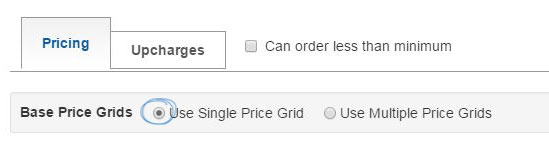
By entering a single price grid, you are indicating that all of the attributes (sizes, imprinting, etc.) for this product are based on one price. To enter the quantities and pricing for this product, there are two basic rules:
- Quantities must go from lowest to highest.
- List Prices and Net Costs must go from highest to lowest
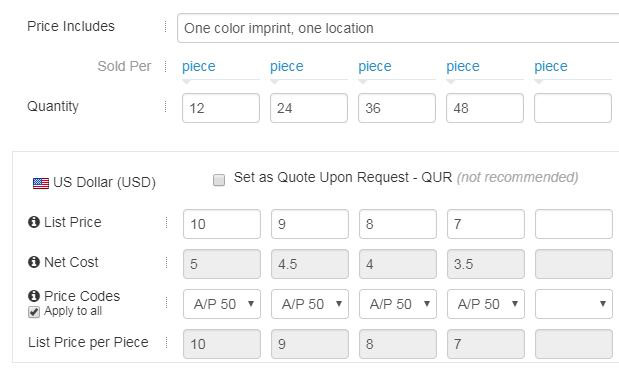
Use the Price Codes dropdown to select the discount code. The system will then calculate the net cost automatically. If the same price code applies to all the quantities in this price grid, check the Apply to All checkbox.
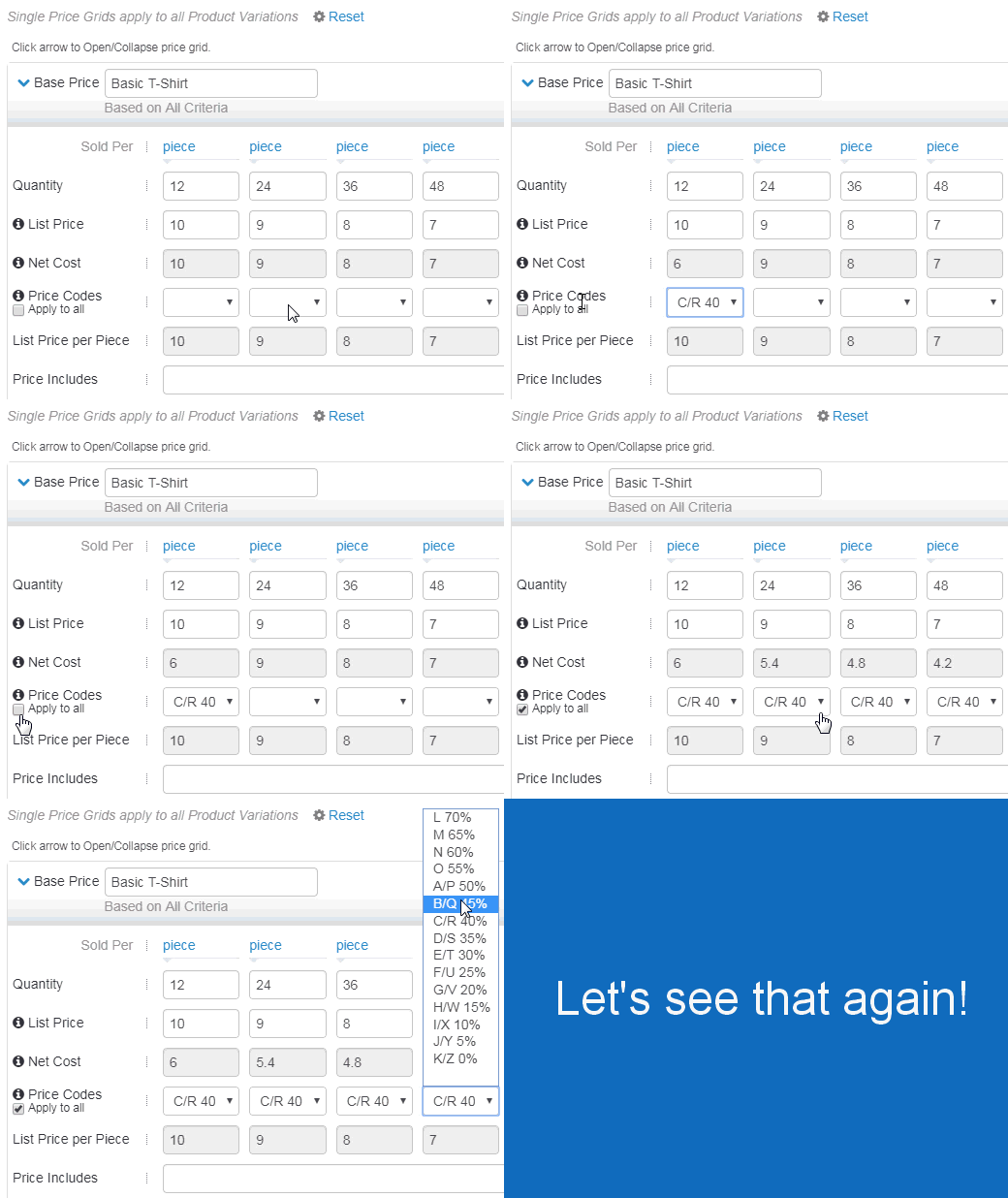
The List Price per Piece will be automatically calculated based on the sold per unit.
In the Price Includes box, indicate what is included in the base prices. For example, if the base price includes a one color, one location imprint, type “1 color, one location imprint” in the Price Includes field.

Use Multiple Base Price Grids Based on One Attribute
Use Multiple Price Grids when your product has multiple prices based on an attribute, option, packaging or even production/rush time. If the pricing is based on a combination of two attributes, such as size and color, please review the "Multiple Price Grids Based on Two Attributes" section below.
To use Multiple Price Grids, click on the Pricing Tab then select the "Use Multiple Price Grids" option.

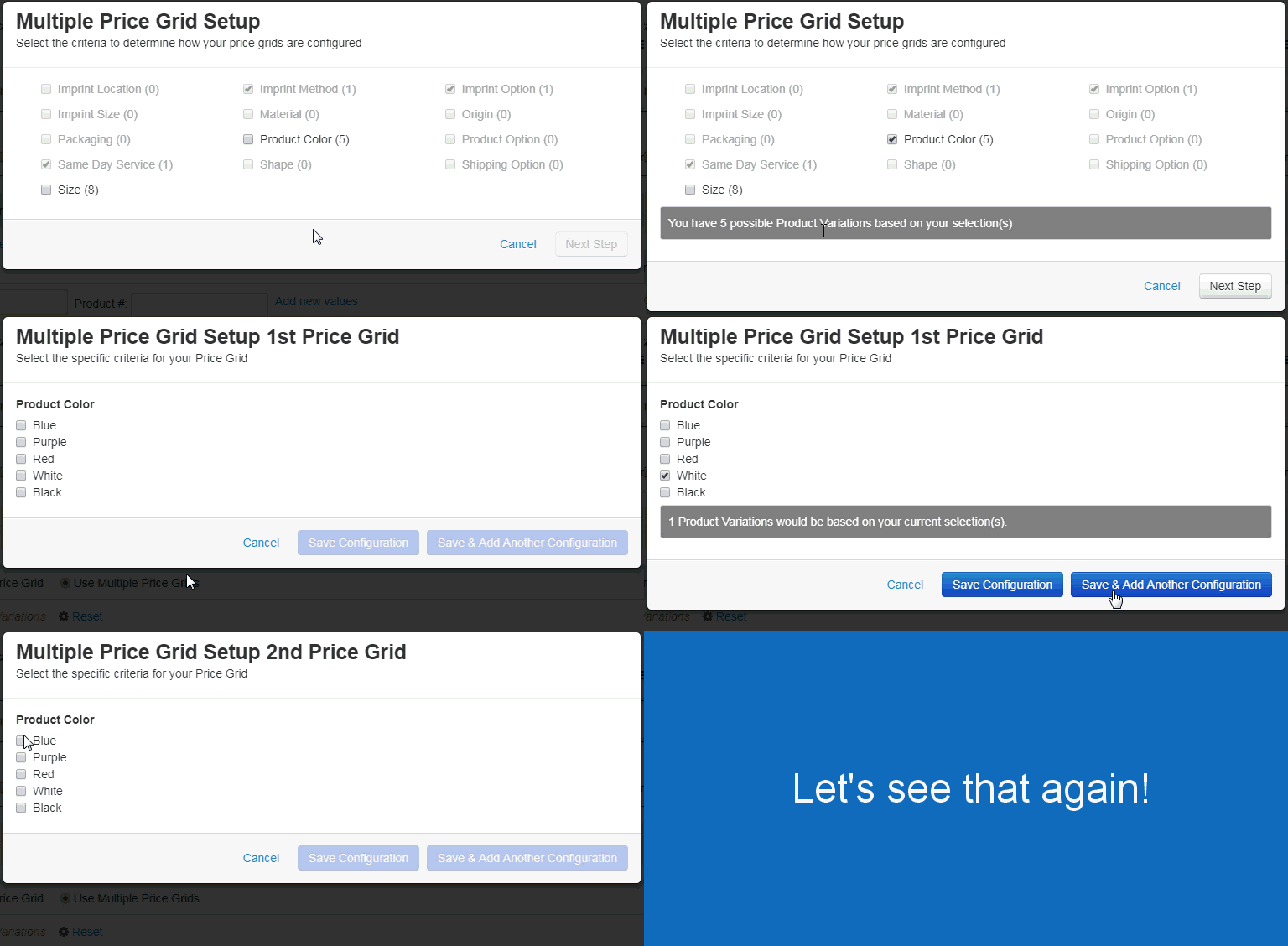
After selecting the "Use Multiple Price Grids" option, the Multiple Price Grid Setup window will display all available criteria for base pricing. For example, if the product is a T-Shirt and the pricing is based on the color because the basic white T-Shirt is less costly than the colored shirts, two price grids are needed.
To set up two price grids based on color:
- Check the Product Color box. The number of possible variations will be shown in a grey bar below the checkboxes.
- Click on the Next Step button.
- Check the options for the first price grid. In the example with the T-Shirt, one price grid is needed for the white shirt and one is needed for the colored shirts. Check the box for "White".
- Click on the Save & Add Another Configuration button. This will create a price grid for the white and then clear the checkboxes so the criteria for the second price grid can be selected.
- Check the colors for the second price grid.
- Click on the Save Configuration button.
There will now be two price grids available for base pricing.
To enter the quantities and pricing for this product, there are two basic rules:
- Quantities must go from lowest to highest.
- List Prices and Net Costs must go from highest to lowest.
Use the Price Codes dropdown to select the discount code. The system will then calculate the net cost automatically. If the same price code applies to all the quantities in this price grid, check the Apply to All checkbox.
The List Price per Piece will be automatically calculated based on the sold per unit.
In the Price Includes box, indicate what is included in the base prices. For example, if the base price includes a one color, one location imprint, type “1 color, one location imprint” in the Price Includes field.
Use Multiple Base Price Grids Based on Two Attributes
Use Multiple Price Grids when your product has multiple prices based on a combination of two attributes. Please keep in mind, two is the maximum number of attributes which can be used for base pricing. An example of two attributes would be size and color. If the pricing is based on one attribute, such as color, please review the "Multiple Price Grids Based on One Attributes" section above.
To use Multiple Price Grids, click on the Pricing Tab then select the "Use Multiple Price Grids" option.
After selecting the "Use Multiple Price Grids" option, the Multiple Price Grid Setup window will display all available criteria for base pricing. You can add as many price grids as needed. For example, if the product is a T-Shirt and the pricing is based on the color and the size because the basic white T-Shirt is less costly than the colored shirts, plus both options are available in standard and extended sizes, four price grids are needed.
To set up four price grids based on color and size:
- Check the Size box and then check the Product Color box. The number of possible variations will be shown in a grey bar below the checkboxes.
- Click on the Next Step button.
- Check the options for the first price grid. In the example with the T-Shirt, the first price grid is for the white shirt in standard sizes. Check the box for "White" and then check sizes "XS" through "XL".
- Click on the Save & Add Another Configuration button. This will create a price grid for the white shirt in sizes XS-XL and then clear the checkboxes so the criteria for the second price grid can be selected.
- The second price grid is for the white shirt in extended sizes. Check the box for "White" and then check sizes "2XL" through "4XL".
- Click on the Save & Add Another Configuration button.
- The second price grid is for the colored shirts in standard sizes. Check each color box and then check sizes "XS" through "XL".
- Click on the Save & Add Another Configuration button. This will create a price grid for the white shirt in sizes XS-XL and then clear the checkboxes so the criteria for the second price grid can be selected.
- The fourth price grid is for the colored shirt in extended sizes. Check each color box and then check sizes "2XL" through "4XL".
- Click on the Save Configuration button.

There will now be four price grids available for base pricing. To enter the quantities and pricing for this product, there are two basic rules:
- Quantities must go from lowest to highest.
- List Prices and Net Costs must go from highest to lowest.
Use the Price Codes dropdown to select the discount code. The system will then calculate the net cost automatically. If the same price code applies to all the quantities in this price grid, check the Apply to All checkbox.
The List Price per Piece will be automatically calculated based on the sold per unit.
In the Price Includes box, indicate what is included in the base prices. For example, if the base price includes a one color, one location imprint, type “1 color, one location imprint” in the Price Includes field.